
Adding an item to your wishlistUpdated 3 months ago
How to Use Your Wishlist
Whether an item is temporarily out of stock or you are just saving it for later, our Wishlist feature makes it easy to keep track of your favorite games and collectibles. Follow this quick guide to learn how to add, view, and manage items in your wishlist.
Step 1: Log Into Your Account
Before you begin, make sure you are logged into your Good Games account. This ensures your wishlist is saved securely and can be accessed across all your devices.
Step 2: Find Your Item
Use the search bar at the top of the page or browse through our categories (such as Board Games, Trading Card Games, or Role Playing Games) to find the product you want.
Step 3: Add the Item to Your Wishlist
Once you are on the product page:
Look for the main ADD TO CART button on the right side of the page.
Click the Heart Icon ❤ directly next to it.
The item is now saved to your wishlist!
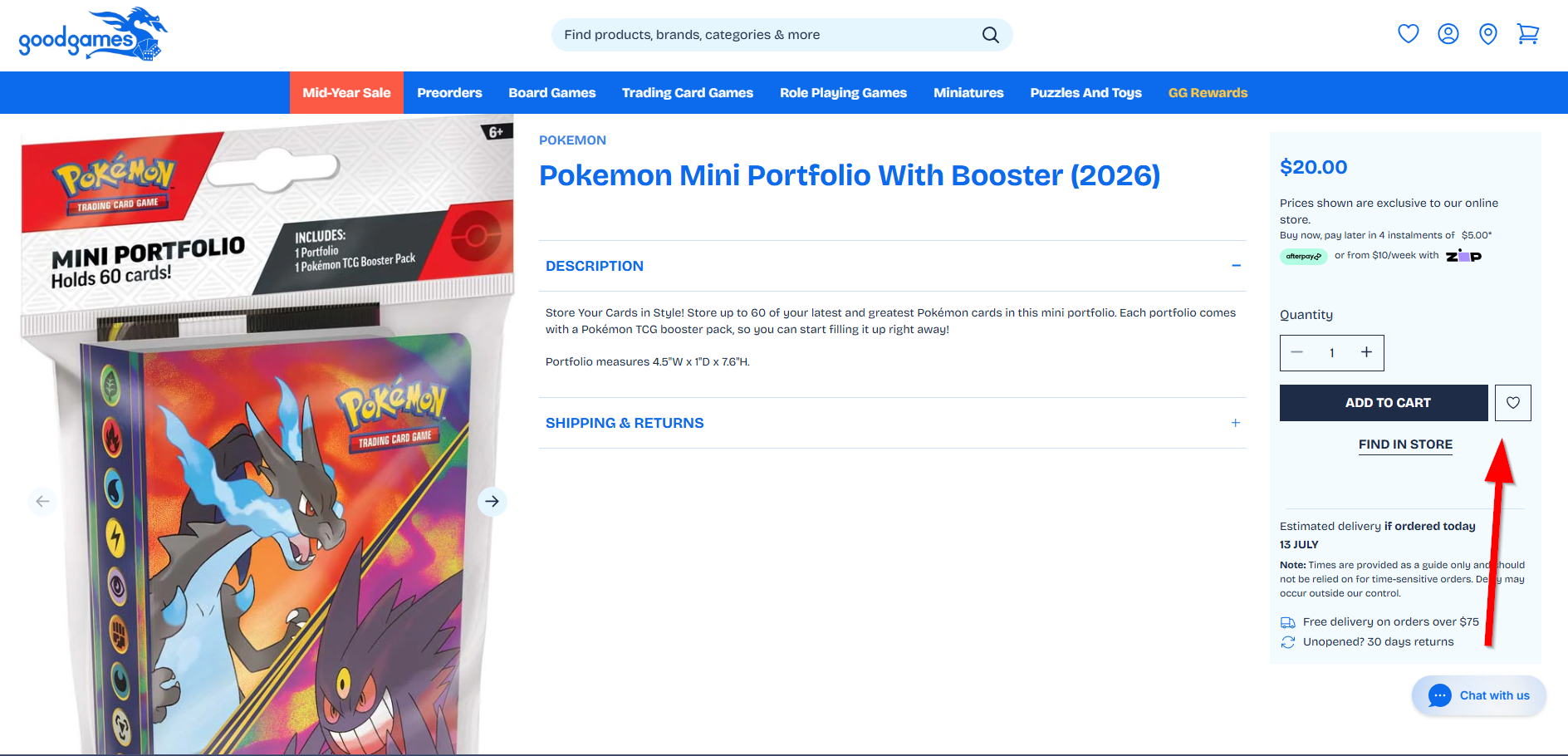 Wishlist icon on goodgames product page
How to View and Manage Your Wishlist
You can review your saved items at any time without leaving the page you are currently browsing.
Viewing Your Wishlist
Look at the top-right corner of the website (near the search bar and your profile icon).
Click the Heart Icon ❤ in the header.
A "My Wishlist" panel will slide open on the left side of your screen.
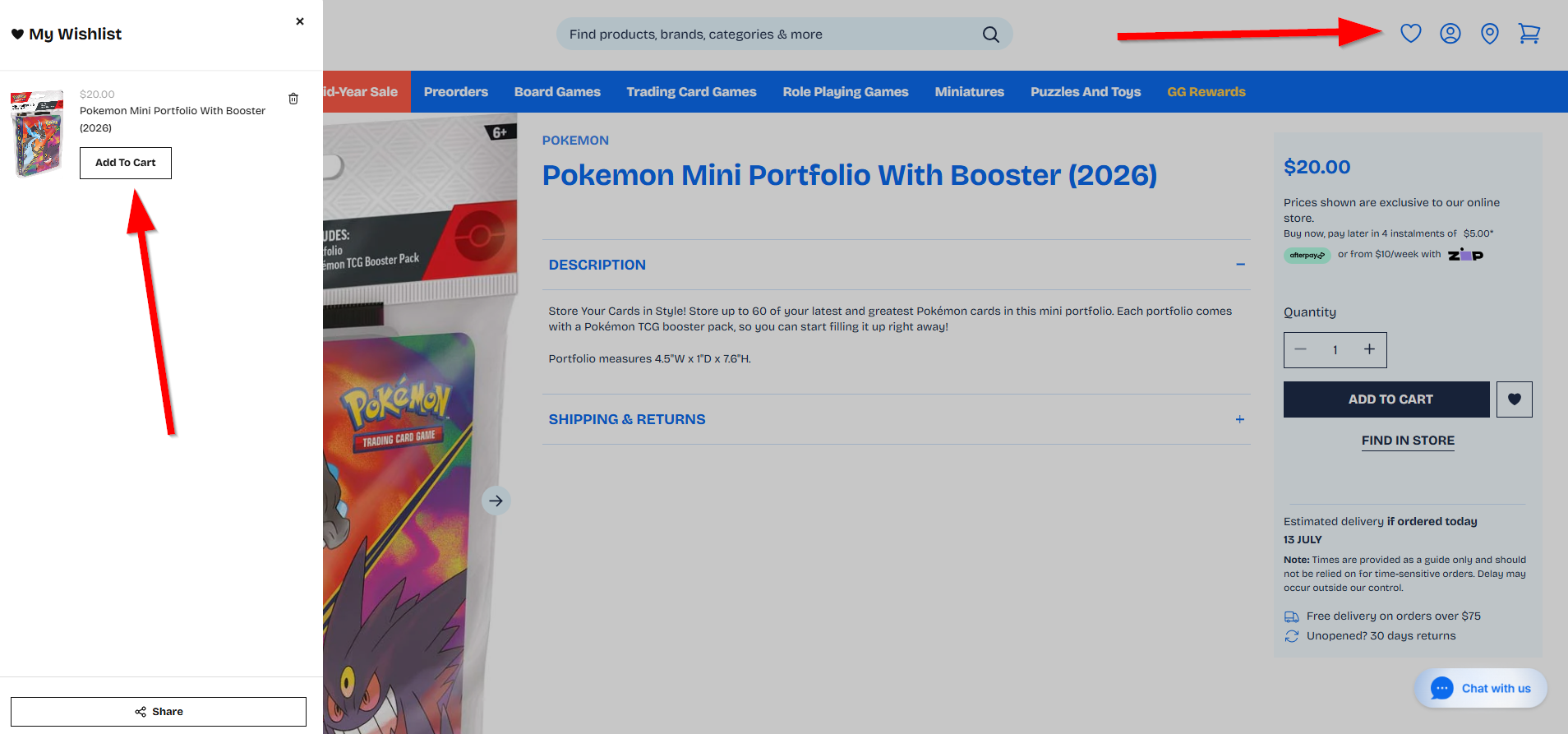 Wishlist panel with your wished items
Managing Your Items
From the open wishlist panel, you have two quick options:
Move to Cart: Click the Add To Cart button inside the panel to move the item directly to your shopping cart for checkout.
Remove Item: Click the Trash Can Icon ($\bin$) in the top right corner of the item card to delete it from your wishlist.
Need more help? If you have any trouble accessing your wishlist, feel free to click the Chat with us button in the bottom right corner of your screen to speak with our support team!